 TraceForge
Projects and libraries
Open or create a project and resolve missing symbols, footprints and paths.
On this page
Keep the project together
TraceForge works with native KiCad project formats: .kicad_pro for project settings, .kicad_sch for schematics and .kicad_pcb for boards. A project can also depend on local symbols, footprints, worksheet files and library tables. Copy the whole directory, not just the board.
For your first session, use the practice project or a copy of an existing design. Never test a new release on your only project copy. Save pending editor changes before asking the Agent to capture its baseline.
Open an existing project
- Extract the project to a normal writable folder, not inside a ZIP or your Downloads preview.
- From the TraceForge project workspace, open the
.kicad_profile. - Open its schematic and board editors. Confirm the title bar names the intended project.
- In the Agent dock, confirm the same project name before sending context or starting work.
- If the editor offers to convert an older format, save only your disposable copy. Keep the original for older software.
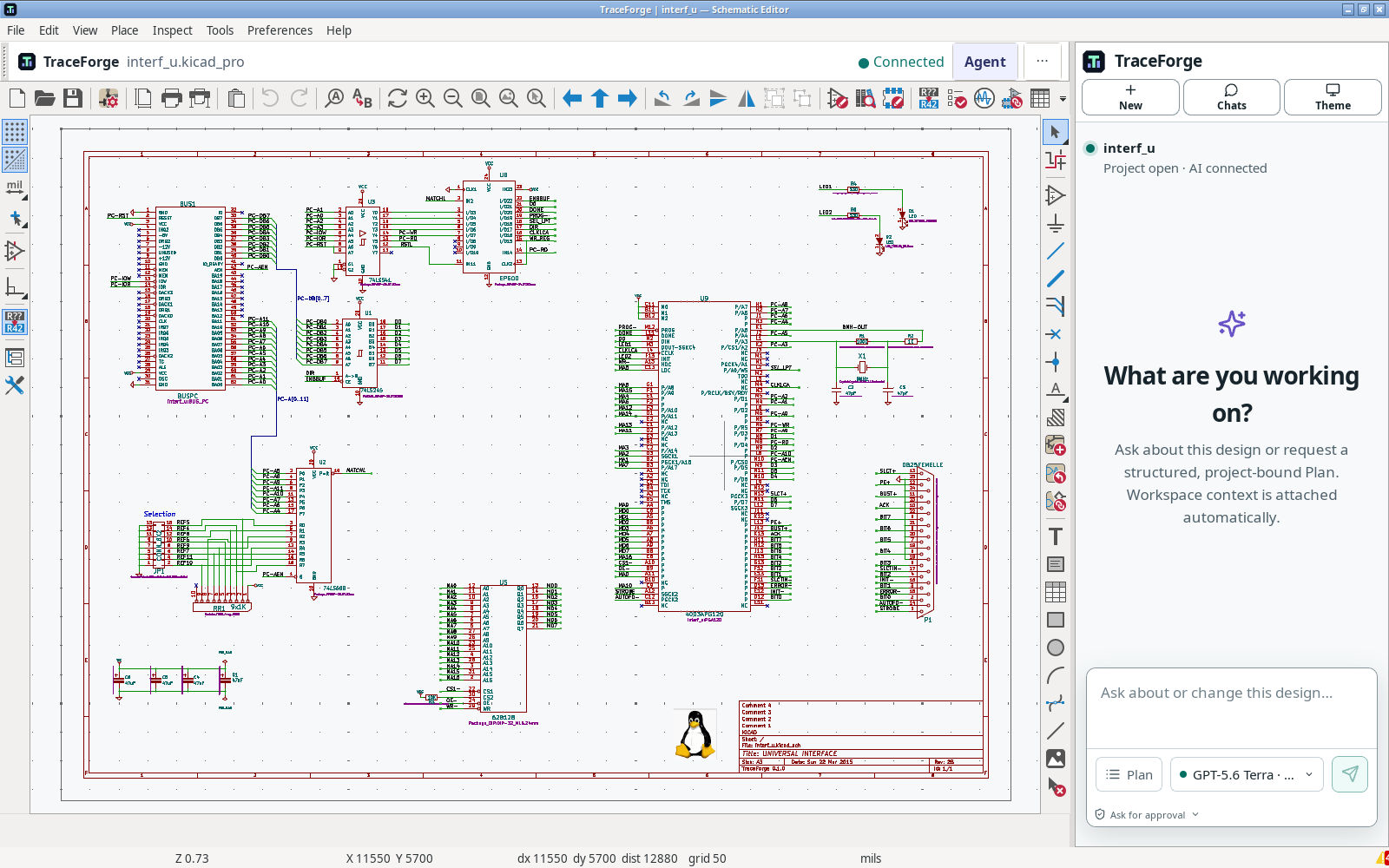
Expected result: symbols, component references and board geometry appear without unresolved-library prompts. The screenshot below shows the included interf_u example; it is an existing design, not AI output.
Create a project
Use File → New Project in the project workspace and choose a new directory. Give it a short, meaningful name. Open the newly created schematic and board files, save them, close the project and reopen the .kicad_pro file. This checks the path and write permissions before you start detailed work.
A chat alone is not a project. If the Agent says the workspace is connecting, wait for project context to become ready or inspect /status; do not paste files from a different project as a workaround.
Resolve symbols and footprints
Check Preferences → Manage Symbol Libraries in the schematic editor and Preferences → Manage Footprint Libraries in the board editor. Project-specific tables belong with the project. Entries using ${KIPRJMOD} resolve relative to that project's directory.
- Copy missing project-local libraries from the original project or trusted source.
- Keep
.prettyfootprint folders and their.kicad_modfiles together. - Repair moved paths rather than substituting a visually similar component.
- Verify symbol pin numbers match the chosen footprint pads before relying on connectivity.
If an expected global library is missing, repair the engineering-library installation or configure its known path. A successful preview does not prove every footprint is correct.
Save, move and back up
Save both editors after a manual change. Avoid renaming files while a run is active. To move a project, stop its runs, close its editors, copy the entire directory and reopen at the new path. Check local library paths again.
Keep exported manufacturing files separate from editable source, labelled with the revision they came from. For AI edits, use the review workflow rather than copying candidate files over your trusted project by hand.